Maililo
How to Set Up Business Email on Android
Read and send your business email on any Android phone using the Gmail app or another mail app.
By Maililo Team · Published · Updated · 2 min read
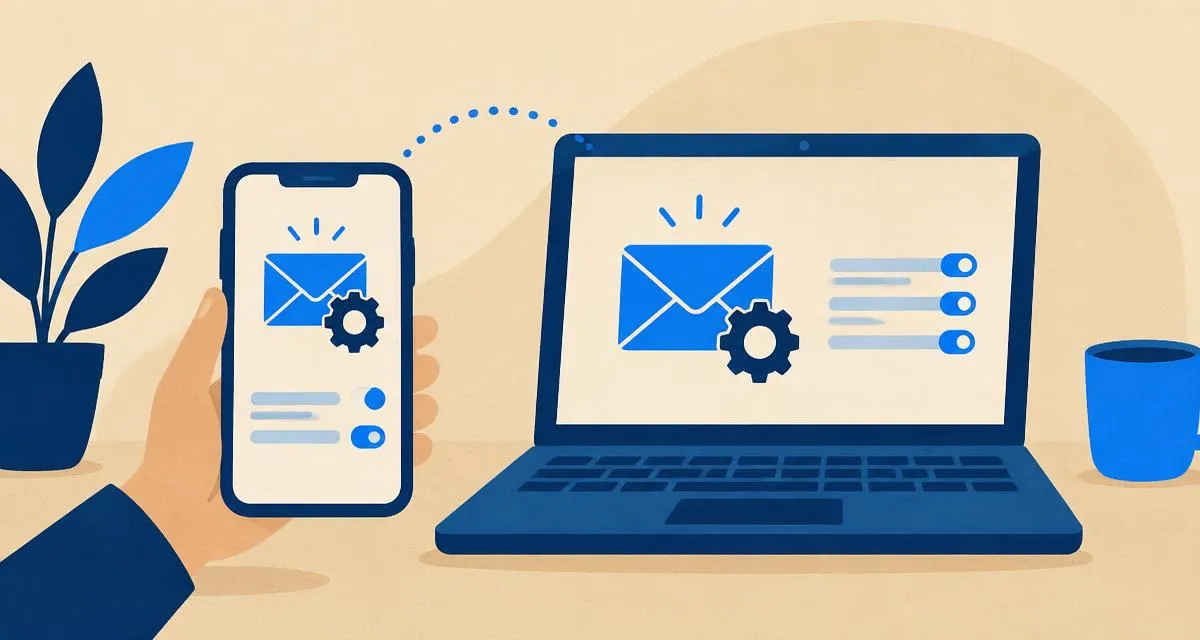
You can read and send your custom domain email on any Android phone. The easiest way is the Gmail app, which is pre-installed on most Android phones and supports other email accounts via IMAP. The steps are similar in Samsung Email, Outlook and other apps.
Settings you'll need
| Server | Port | Security | |
|---|---|---|---|
| Incoming (IMAP) | mail.maililo.com | 993 | SSL/TLS |
| Outgoing (SMTP) | mail.maililo.com | 465 | SSL/TLS |
Username for both: your full email address. Password: your mailbox password.
Set up with the Gmail app
- Open Gmail, tap your profile picture (top right) → Add another account.
- Choose Other.
- Enter your email address and tap Manual setup.
- Choose Personal (IMAP).
- Enter your password and tap Next.
- Incoming server settings:
- Username: your full email address
- Server:
mail.maililo.com - Port:
993, Security type: SSL/TLS
- Outgoing server settings:
- Require sign-in: on
- Username: your full email address
- SMTP server:
mail.maililo.com - Port:
465, Security type: SSL/TLS
- Choose how often to sync and whether to get notifications, then tap Next.
- Give the account a name and enter your name as it should appear on sent mail.
Menu names can vary slightly between Android versions and phone brands.
Set up with Samsung Email
- Open Samsung Email → menu → settings gear → Add account → Other.
- Enter your email and password, then tap Manual setup → IMAP account.
- Enter the same incoming and outgoing settings as above.
Test your account
Send yourself a message from another account, then reply from your phone. Check that the reply arrives and appears in the Sent folder.
Troubleshooting
- "Couldn't open connection to server": check the server name is exactly
mail.maililo.comand the port matches the security type (993 SSL/TLS incoming, 465 SSL/TLS outgoing). - "Authentication failed": use your full email address as the username, and re-type the password — autocorrect often capitalizes the first letter.
- Mail doesn't appear automatically: check sync settings and that battery saver isn't restricting the mail app.
- You changed your password: open the account settings in the app and update it for both incoming and outgoing servers.
Learn why we recommend IMAP in IMAP vs POP3. Using an iPhone as well? See business email on iPhone.
Don't have a business address yet? Create professional email with your own domain using Maililo.